Showing posts with label Recovery Mode. Show all posts

How to Factory Reset Samsung Galaxy Note 2

Performing factory reset on your Samsung Galaxy Note 2 will ease you from severe lag, hang, frozen issues. If you want to make your device in a re-fresh condition then factory reset may solve it all. This may also useful if you need to wipe all data and restore the device to its original default settings. One downside of doing factory reset is that you need to make a back-up copy of all important files you have saved on it, for it will all be deleted once the process done. If your Galaxy Note is rooted, then its been easy for you to make a back-up all of it via CWM recovery. For unrooted devices you can use any back-up apps like Samsung Kies that sync all your data and saved it to the computer.

Factory Reset via Settings

From Home screen tap on "Settings" Tap on "Select Back up and Reset" Choose "Factory Data Reset" Reset all settings and delete all data on device. Enter "Reset Device". Then, select "Erase Everything".

Factory Wipe Data/Factory Reset via Recovery Mode

Turn the Power off. Gently press and hold down Volume Up + Home + Power buttons simultaneously. Release all keys once the Logo appears. You will then prompted in a Android System Recovery options. Now, scroll down using Volume keys, and choose "Select Wipe Data/Factory Reset" Enter your selection using the "Power" button Select Yes — "Delete All User Data". Then, select "Reboot System Now".

Wait until the device will then completely reboots. You can repeat this process if you need to restore back your Samsung Galaxy Note 2 to its original default settings.
How to Boot Samsung Galaxy Note into Recovery Mode when Firmware Upgrade Encountered an Issue

Pressing the Volume UP+Home+Power buttons will boot your Samsung Galaxy Note into Recovery Mode. This is useful if you encountered an issue while upgrading your device firmware and something happens that it just suddenly stuck on a screen and it only displays "Firmware upgrade encountered an issue. Please select recovery mode in Kies and try again." Then the PC will not recognize your Galaxy Note even if you already connected it.

Here's what you have to do next if it happens that you might also encountered this kind of situation. 
1. Remove the battery of your Galaxy Note (If you can't turn it OFF while stuck on the error screen)
2. Put the battery again but don't power it yet again. This time press the recovery mode button combination.
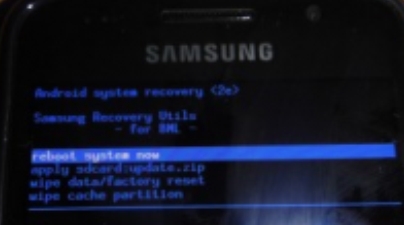
Press and hold the Volume UP+Home+Power buttons until a recovery mode screen appears. 
3. Use Volume Up and Down keys to toggle these options.
 reboot system now
apply sdcard:update zip
wipe data/factory reset
wipe cache partition

Samsung Galaxy Note  into Recovery Mode
4. Select the the first option "reboot system now" then wait until the device will reboot normally.
If the device will not boot into a welcome screen and just stuck or freeze,  go back to recovey mode again.
5. This time select the "wipe data/factory reset" (Note: this will delete all the stored data of  your device but not from the SDcard. Then again "reboot system now". This should boot your Galaxy Note into normal mode.

Why this happens? 
This might happens in several reasons while you are  upgrading  into a certain firmware update.
1. One of these is that you accidentally interrupt while the phone is in firmware upgrading process.
2. Due of power lose, your device have no sufficient battery charge when you upgrade.
3. Network connection is too weak and or an interruption occurred.
4. If you are using a PC or laptop, it might getting interrupted with another program like anti-virus software.
The rest will be on your own personal experience.

Then try to update the firmware again, 'this time ensure that you have your android device battery fully charge, use a good PC or laptop and a good network connection.

If the above method doesn't works on your Galaxy Note anymore, then I suggest that you should visit your dealer. Explain to them of what really happens when you update your device and ended-up in an undesirable outcomes. Of-course let them fix for it.