How to take screenshots on Samsung Galaxy Note Upgraded with ICS Android Ice Cream Sandwich

This is now exactly how it works to take a screenshot on Samsung Galaxy Note that already upgraded and running with Android Ice Cream Sandwich ICS 4.0.3 OS. Once you already updated your Galaxy Note to ICS, the screen capture hotkey combination is now change to Volume Down and Power buttons (originally [Home] + [power] when it was in 2.3.6). This function was the same on Samsung Galaxy S2 that also updated with ICS 4 OS and probably will work on other Samsung android devices that already runs with said Ice Cream Sandwich OS.


You'll just then simply press and hold the Volume Down and Power buttons at the same time for about a second. You’ll see a flash and the screen will be framed which shows the screenshot was taken. A new notification in the notification bar saying "Saving Screenshot" and once it’s done there’ll be a "Screenshot captured"” notification in the pull down menu which will take you directly the screenshot in the Gallery.

The screenshot will be saved on your phones internal SD card - in a folder /Pictures/Screenshots. That's it, enjoy!

HTC One X Factory Reset: Fix Bugs and Problem Issues

If you have a  HTC One X at hand and notice some bugs and issues regarding your device and wanted to fix it accordingly the only solution for now is by doing a factory reset. This is only a temporary option just for now until your device will get a new OTA firmware updates. I hope for those who plans on buying the the HTC One X, please don't get disappointed, this is only some minor glitches from the software and also happens on some other Android devices. As I already mentioned, this can be easily fix by another software update sooner, but until there is no update yet, this is the simplest solution.

Here's a known bugs and issues that have reported by HTC One X users that have been brought together   from XDA-Developer forum. Thank's to H-Cim for starting the thread and all the HTC One X users who participated and came up with some known bugs and issues altogether.

Bugs
  • Screen stops turning orientation, even in settings menu G-sensor no longer moves. - POSSIBLE FIX : Go to taskmanager and kill all tasks - All credit and thanks go to casca
  • Calendar widget crashes if more then 20 appointments - TIP : Just remove the widget since it will keep crashing until you remove it...
  • Other HTC widgets seem to be causing lag too.
  • GPU Rendering can't be forced.
  • Live wallpaper stops on switching between screens
  • GPS issues - Possible fix : Download gps status on the market and clear the a-gps data - if this works all credit and thanks go to matmar
  • Screen starts "jumping"
  • When browsing/camera/other Sense 4.0 related tasks -> It looks like there is "noise" on the screen. Like this
  • SIM card stops working/restarts/no connection
  • The three dot menu button appears in some ICS native apps, like the YouTube app for example. - Fix for this in Dev section (requires unlock)
  • Tegra 3 games (and some others) lag, this is probably connect to some video driver bug. (Hardware is fast enouf to play it without lag)
  • Screen reactivating after using the lock-button (only 1 click ofc)
  • When opening the Clock app (just by pressing the clock on your homescreen), and moving to the Timer-tab (the one on the far right) it always adds one hour, one minute and one second to whatever time you set it to.
Issues
  • Lag in Multi-Tasking window and other elements - TIP : Go to Dev Settings - disable animations. This improved the speed a lot for me (even thou most animations keep on running, only the excessive ones get turned off) [This lag is clearly a software issue, other launchers are lag-free; should be fixed soon]
  • A lot of people are reporting signal problems. (No clue what's causing it)
  • Yellow spots on the screen
Here's how to Factory Reset the HTC One X.

If you’re passing HTC One X on to someone else or HTC One X has a persistent problem that cannot be solved, you can perform a factory reset (also called a hard reset).

Warning: Factory reset will permanently delete all your data and customized settings, and will remove any applications you’ve downloaded and installed. Be sure to back up any data and files you want to keep before you do a factory reset.

Performing a factory reset from settings


   1. Slide the Notifications panel open, and then tap .
   2. Tap Storage > Factory data reset.
   3. Tap Reset phone, and then tap Erase everything.

Performing a factory reset using hardware buttons

If you can’t turn HTC One X on or access settings, you can still perform a factory reset by using the hardware buttons on HTC One X.

   1. Press and hold the VOLUME DOWN button, and then press and hold the POWER button.
   2. Wait for the screen with the three Android images to appear, and then release the POWER and VOLUME DOWN buttons.
   3. Press VOLUME DOWN to select FACTORY RESET, and then press the POWER button.

If the problem still persist after performing hard reset, you might need to wait the new OTA software update from HTC. A software update fro HTC devs will only fix all known bugs and issues mentioned above for your HTC One X.

Dealing with AudioOut_1 Partial Wakelock on Samsung Galaxy S2 that runs in Ice Cream Sandwich (Fix battery fast drain issue)

Recently, most Samsung Galaxy S2 users who are already upgraded to the latest Android 4.0.3 Ice Cream Sandwich (ICS) talking about the problem of a wakelocks as caused by the Audioout_1. This has been noticed by using Better Battery Stats on the new ICS firmware with the Galaxy Nexus, causing the battery draining fast, while when listening Audio like Google Music, the Sirius/XM app or perhaps just happens when doing nothing at all. So, if you'll also newly upgraded your Galaxy S2 to the newest Ice Cream Sandwich firmware and experience this kind of issues too, this might help you to solve that problem. This reportedly occured on firmware with build number I9100XWLP2, I9100XXLPQ and I9100XXLP7, other carrier branded version like T-Mobile and Vodafone with firmware build I9100BOLPD  and I9100BULPC and on later version were not already been tested.

According to some users experience that the AudioOut_1 Partial Wakelock appears to be connected to the Touch Sounds and Screen Lock Sounds options in the phone's Sound Settings. So, to disable or shutting down the Touch Sounds & Screen Lock Sounds in Settings will fix the the battery draining problem.

What is AudioOut_1 basically?

"AudioOut_1" is a Wakelock that is basically a kernel process that funnels data from audio apps to the audio hardware. It's what processes audio from say, Pandora or Slacker Radio, and passes it to the phone's audio hardware. (from toms-world.org)

Here's how to fix the AudioOut_1 Partial Wakelock problem:

Go to > Settings > Sound
Uncheck this options:
"Keytones"
"Touch sounds"
"Screen lock sound"

how to fix AudioOut_1 Partial Wakelock on Samsung Galaxy S2 running with Android Ice Cream OS
I just left the "Ring and Screen Tap" vibra option" on mine.
I tried it and it happens that my Galaxy S2 went in an hour losing only 1% of the battery and the results the WakeLock percentage for AudioOut_1 goes down as I check back into BetterBatteryStats. Unlike before that I have about 10%-15% battery drain even when my Galaxy S2 is on idle mode. So, just try it out. Enjoy!

How to Boot Samsung Galaxy Note into Recovery Mode when Firmware Upgrade Encountered an Issue

Pressing the Volume UP+Home+Power buttons will boot your Samsung Galaxy Note into Recovery Mode. This is useful if you encountered an issue while upgrading your device firmware and something happens that it just suddenly stuck on a screen and it only displays "Firmware upgrade encountered an issue. Please select recovery mode in Kies and try again." Then the PC will not recognize your Galaxy Note even if you already connected it.

Here's what you have to do next if it happens that you might also encountered this kind of situation. 
1. Remove the battery of your Galaxy Note (If you can't turn it OFF while stuck on the error screen)
2. Put the battery again but don't power it yet again. This time press the recovery mode button combination.
Press and hold the Volume UP+Home+Power buttons until a recovery mode screen appears. 
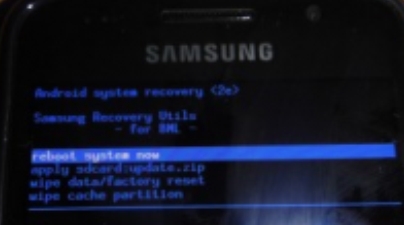
3. Use Volume Up and Down keys to toggle these options.
 reboot system now
apply sdcard:update zip
wipe data/factory reset
wipe cache partition

Samsung Galaxy Note  into Recovery Mode
4. Select the the first option "reboot system now" then wait until the device will reboot normally.
If the device will not boot into a welcome screen and just stuck or freeze,  go back to recovey mode again.
5. This time select the "wipe data/factory reset" (Note: this will delete all the stored data of  your device but not from the SDcard. Then again "reboot system now". This should boot your Galaxy Note into normal mode.

Why this happens? 
This might happens in several reasons while you are  upgrading  into a certain firmware update.
1. One of these is that you accidentally interrupt while the phone is in firmware upgrading process.
2. Due of power lose, your device have no sufficient battery charge when you upgrade.
3. Network connection is too weak and or an interruption occurred.
4. If you are using a PC or laptop, it might getting interrupted with another program like anti-virus software.
The rest will be on your own personal experience.

Then try to update the firmware again, 'this time ensure that you have your android device battery fully charge, use a good PC or laptop and a good network connection.

If the above method doesn't works on your Galaxy Note anymore, then I suggest that you should visit your dealer. Explain to them of what really happens when you update your device and ended-up in an undesirable outcomes. Of-course let them fix for it.


How to Take Screenshot on Samsung Exhibit II 4G T679

An Android device like  Samsung Exhibit II 4G SGH-T679 with TouchWiz has a built in screenshot function, but how does it work? This does not require any root or installing any applications just to capture the screen that you might want to save. Sometimes I already accidentally press this buttons and wonder how did I took it and save on my gallery without knowing what are those buttons.


So, here's how to take a screenshots on your Samsung Exhibit II 4G T679, no root and no applications needed or to install required. All you have to do is Press the Home and Power button at same time,  then a camera "flicking" action on the screen should appear. The images captured will be then saved in your phones gallery.

That's it ! too easy isn't it? Enjoy using your phone.